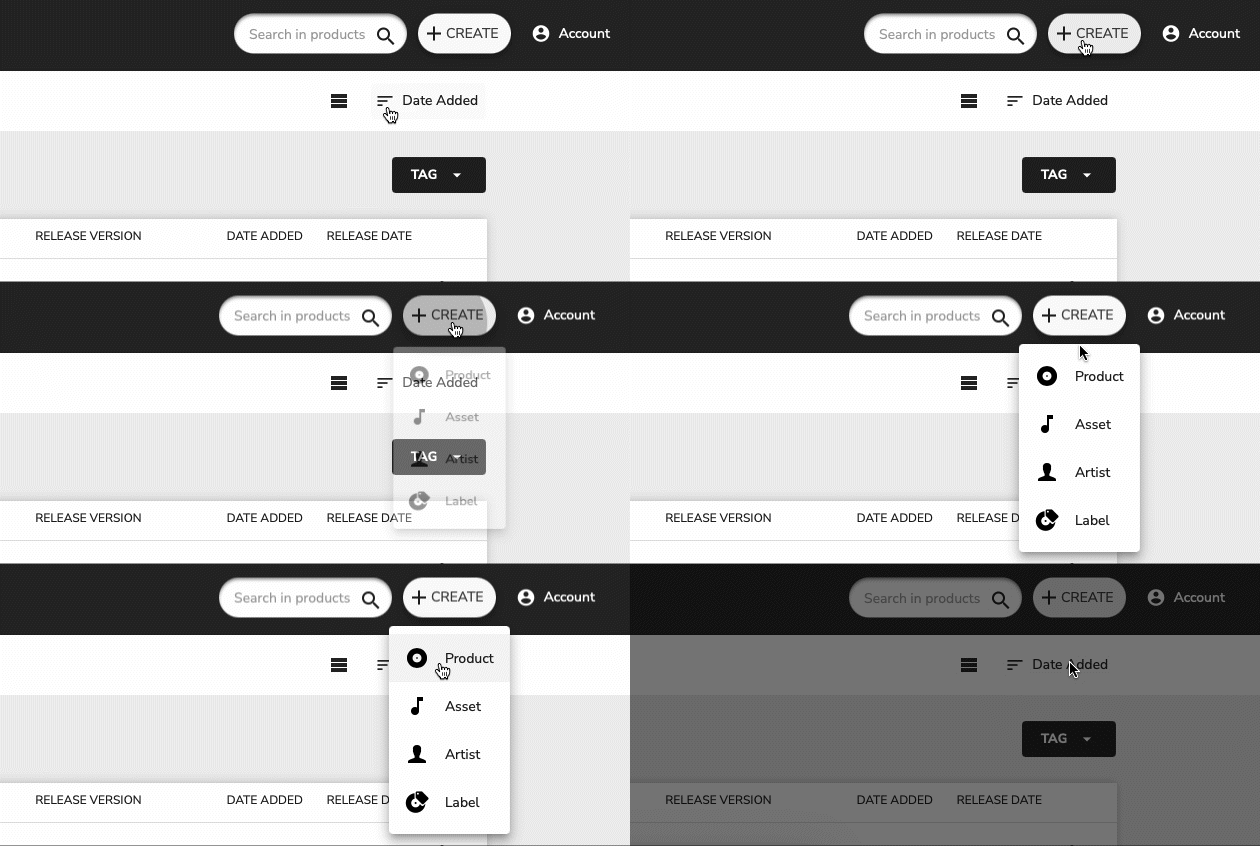
- Click on "Create" in the upper right corner of the screen and select "Product."
- In the pop-up menu, enter the name of your product (the title of the Album, Single, or EP). Product versions (e.g., radio or extended mixes) can be added later.
- Add cover art by clicking on the record image. Ensure that your cover art meets the specified file requirements.
Note: Cover art files must be in JPG RGB or PNG format, a minimum of 1400 x 1400 pixels and a maximum of 6000 x 6000 pixels. We highly recommend you aim to supply a minimum of 3000 x 3000 pixels. Cover art can be just artwork or a picture with the song title and artist. Note that the artwork must match the metadata, meaning that if the track is clean, there can't be an explicit content tag on it. - Click "Create" to save your product as a draft.
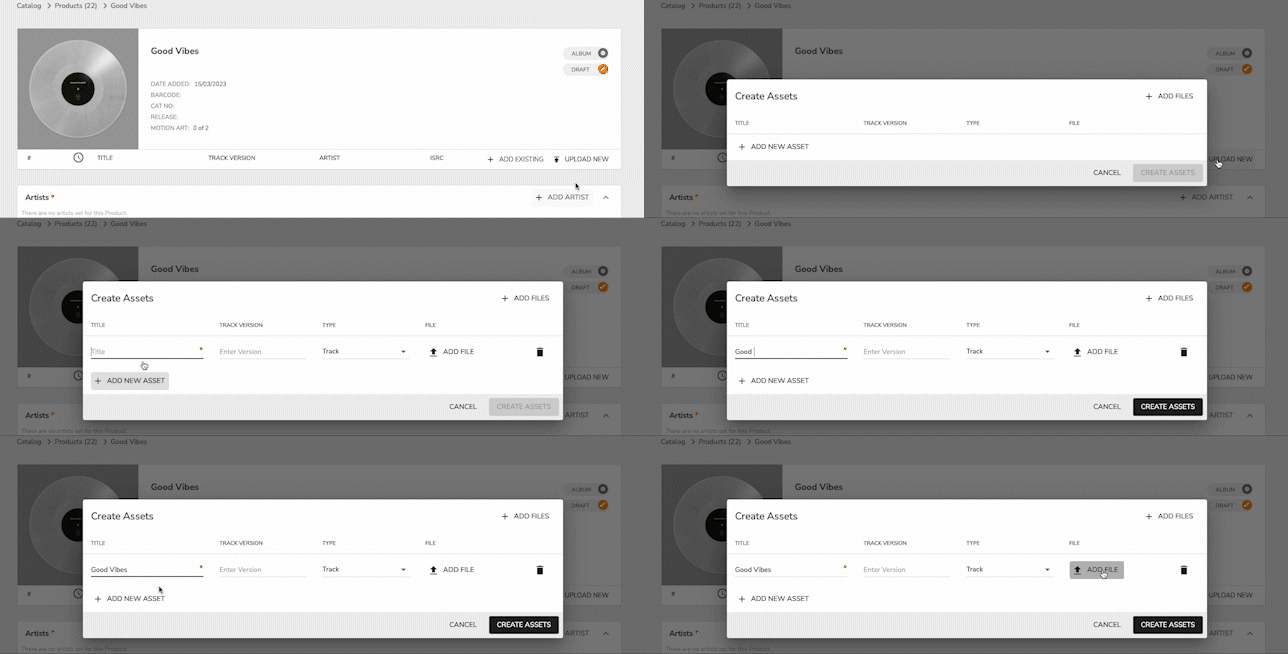
- Select "Upload New" and click on "Add Files" to open the file-picker menu.
- Choose the relevant audio files and click "Open."
- Add the asset title and track version if applicable (e.g., Live, Instrumental, Remix). Avoid adding any brackets/parentheses in the name.
- Click "Create Assets" to upload the audio files to Sonomo. Make sure your files meet the specified format and quality requirements. We support uploads of FLAC and WAV files starting from 44.1 kHz & 16-bit.
- Complete the metadata fields, including the track title, display artists, and track version. Fill in as much information as you possibly can for your track. The more details you add, the more likely your track will be discovered on streaming services.
Note: The track title should have the same name as your song. Display artists are created based on the artists you've added to the song. The track version is used to label an extended mix or remix of your song. The track version 'original' isn't accepted by the streaming services because it's implied.
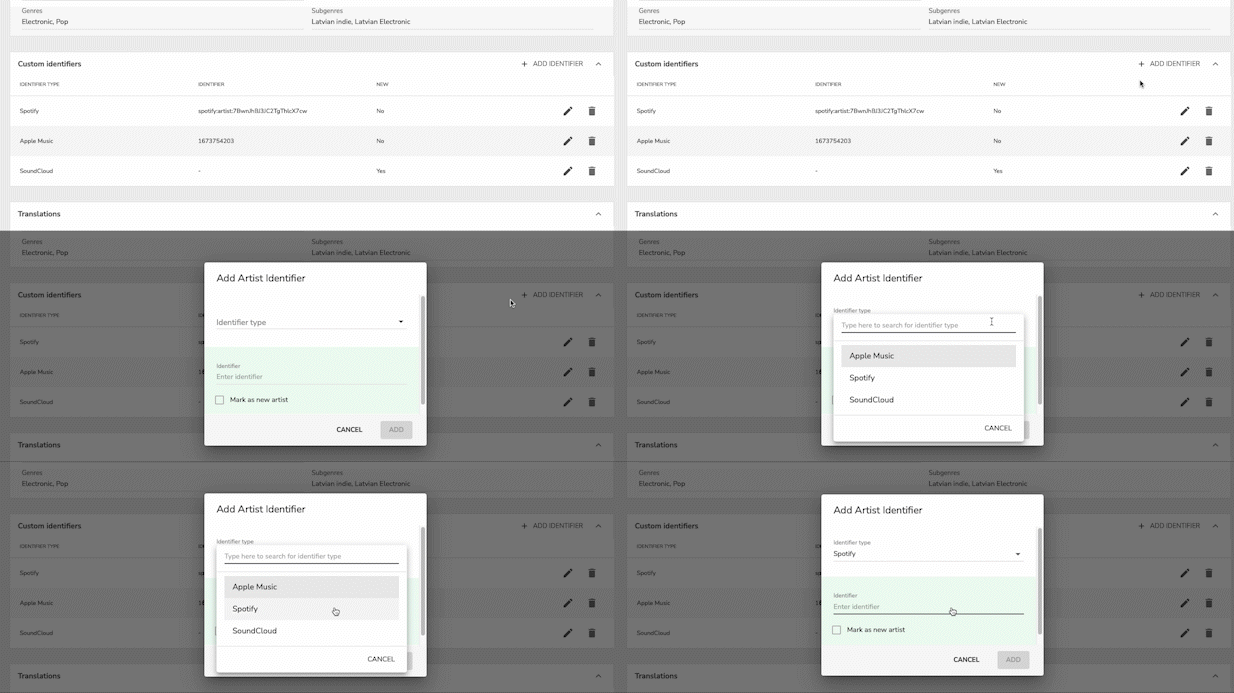
- Add your artist identifier for both Spotify and Apple Music. Double check that you are linking the right artist profiles so that future releases will be delivered to the correct Spotify and Apple Music profiles.
Spotify: Spotify artist identifiers is a URI code that consists of “spotify:artist:” and the characters from an artist identifier link.
Apple Music: Apple music identifier is taken from the link when sharing an artist profile. Copy the numbers at the end of the URL provided.
For a step-by-step guidance on how to find your Spotify or Apple Music artist identifiers, you can follow this guide that we have prepared for you: https://www.sonomo.com/help/distribution/how-to-add-artist-identifiers-spotify-apple-music - To add a Label name to your product select the "Label" field and add a new Label or search for an existing one.
- Select the appropriate Explicit Content tag for your product. Use the following guide:
Not Explicit: content which does not contain any swearing and/or foul language
Explicit: content that contains swearing and/or foul language
Clean: content that contains swearing and/or foul language that has been censored
Note: It is important to note that a product is tagged Explicit even if just one of the assets (tracks) is an explicit one. - Choose the audio language or select "Instrumental" if your song has no lyrics.
- Add the required contributors, such as the composer and lyricist, using their full names. While these are the ones that are required, you can also add other contributors. Pseudonyms can be used for the producer.
- If a song is instrumental, it must have at least 1 composer registered. Please note that adding lyricists to instrumental tracks will result in the submission being rejected.
- If the song has lyrics, then it must have at least 1 composer and 1 lyricist.
- In order to meet the Apple Music delivery requirements some additional contributor roles are mandatory for all content delivered to Apple Music. Each song requires at least one contributor role across each of the following categories:
- Composer / Lyricist
- Specific Performer Roles (Vocal, Drums, Guitar etc.)
- Producer / Mastering Engineer
- Select the correct genre and subgenre for your product and asset. Subgenres can be custom values, whereas genres need to be selected from the pre-defined list. The more specific you are for subgenres, the better it is for the streaming platform to match your music with the right listener.
- Address any flagged missing information by clicking on the relevant message in the top left corner of your screen.
- Optionally, provide your own ISRC and UPC codes, or leave them blank for Sonomo to assign unique codes.

Once you have completed these steps, your music is ready to be submitted for distribution. Click "Submit" and wait for our team to review your submission and deliver it to digital service providers (DSPs). If there are any issues with your metadata, a team member will contact you for further clarification.
Thank you for choosing Sonomo as your music distribution partner, and we look forward to helping you share your music with the world!
That's it! If you have any more questions or concerns, you can contact us at support@sonomo.com